



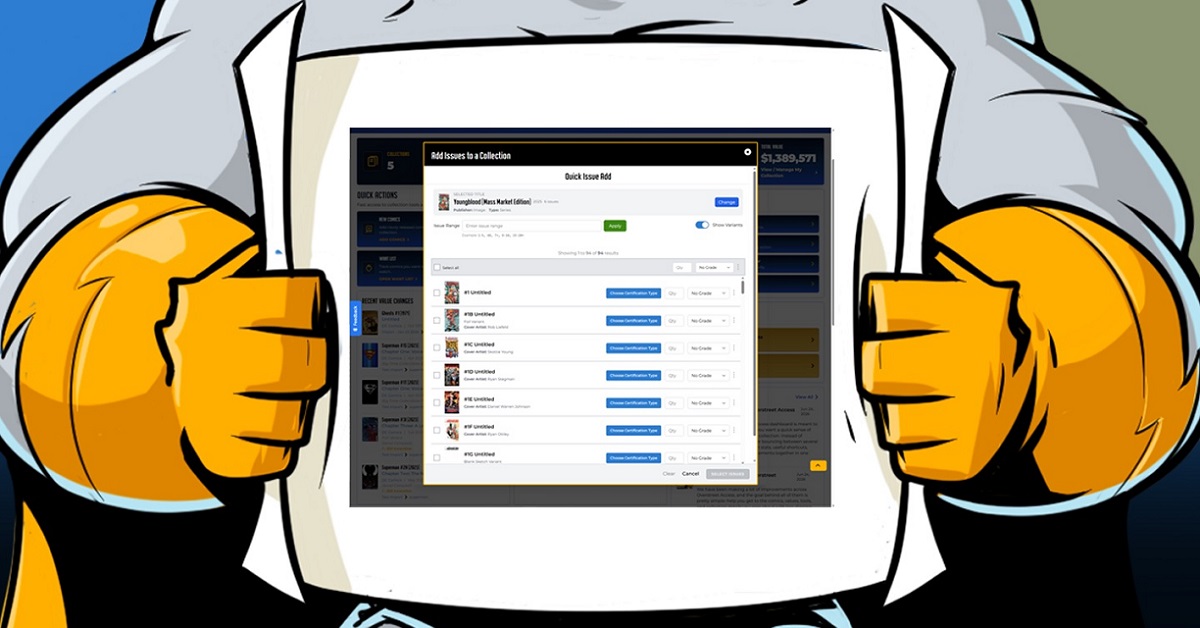
Overstreet Access: How to Use “Quick Issue Add” Feature
The Overstreet Access Quick Issue Add feature is built for speed and efficiency. It’s made for moments when collectors know exactly what title and/or books they want to add to their collection without going through several pages. You can search for the title, choose issues, set key copy details, choose where they should go in your collection, and add them.
The Quick Issue Add button is on the dashboard and requires a Silver or Gold level subscription. It can be accessed in the Quick Actions section on the dashboard, then a modal opens with the heading Add Issues to a Collection.
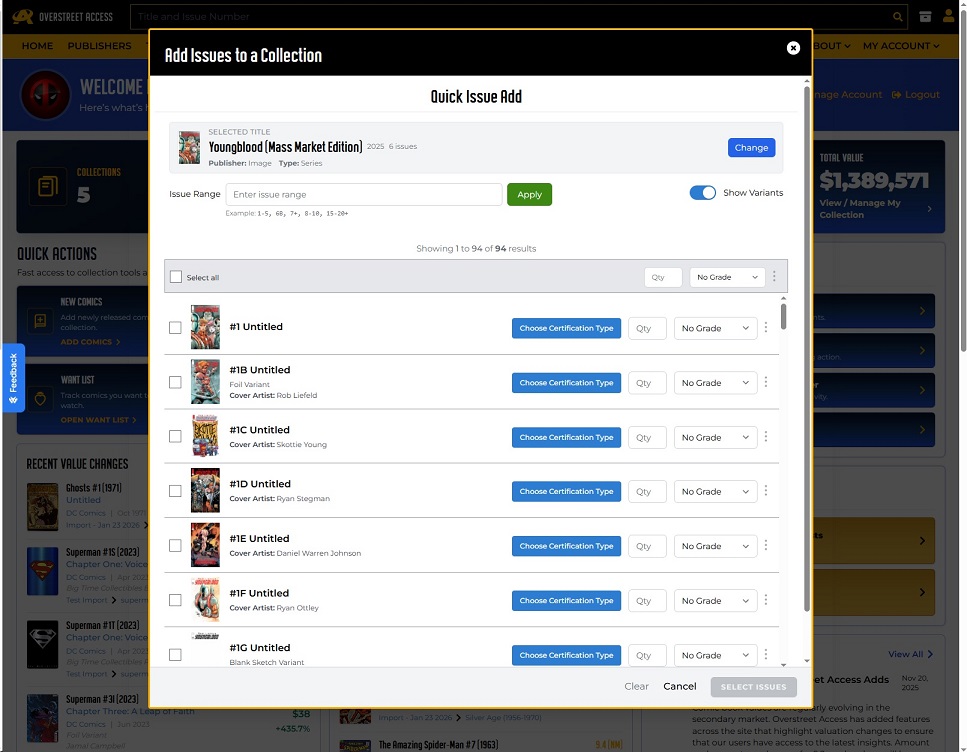
Start by searching for the title or volume name, which will generate results in a cover grid where you can use the cover, title name, start year, and issue count to choose the right title. Once a title is selected, each issue row will include a checkbox, cover thumbnail, issue number, issue name, and variant details. It also shows helpful badges to let you know if it’s already in your collection, on the want list, or a key issue. Then check issues that you want to add.
The Issue Range is a new feature inside Quick Issue Add that helps narrow long lists of issues before selecting books. The range does not automatically add anything, it filters the list to make it easier to choose what to add. In the Issue Range field, you can type the range, click Apply, and then list will update; use Clear to remove the range and return to regular browsing.
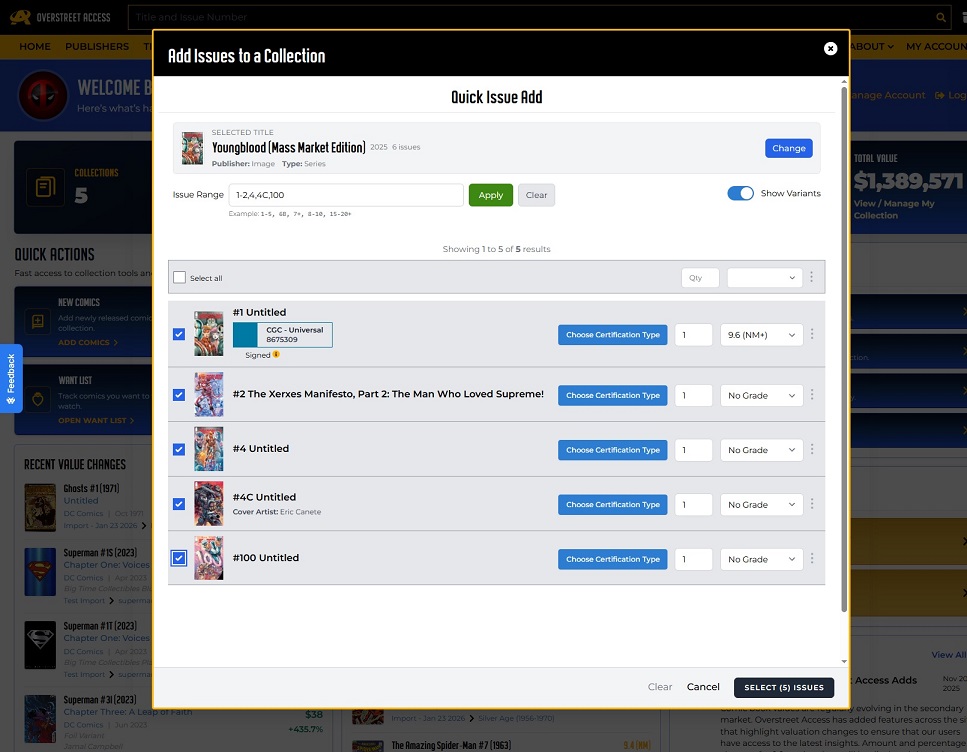
Using the + symbol will show the standard issue cover and its variants; typing the issue number and variant cover label (B, C, D, etc.) shows that specific variant cover and value. Issue Range search examples include:
- Type 1-5 to see issues 1-5, standard covers only
- Type 6B to see issue 6B or that specific issue label
- Type 7+ to see issue 7 and all of its variants
- Type 15-20+ to see issues 15-20, plus the variants in that range
- Type 1-5, 6B, 7+ to combine multiple segments in one search
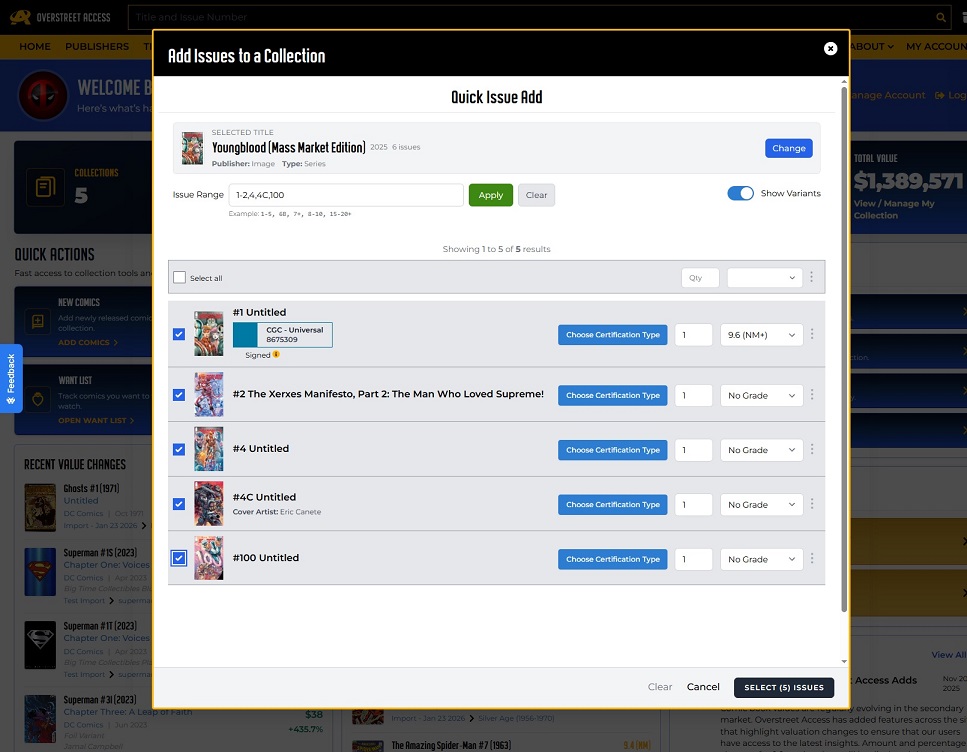
If the range does not produce a list of results, it usually means the range selected did not match the issue or title perimeters. For instance, if an issue does not have a cover B it will not generate a result. The Issue Range feature does not auto-check issues or add them without being chosen, and the select all option only applies to the current page of results.
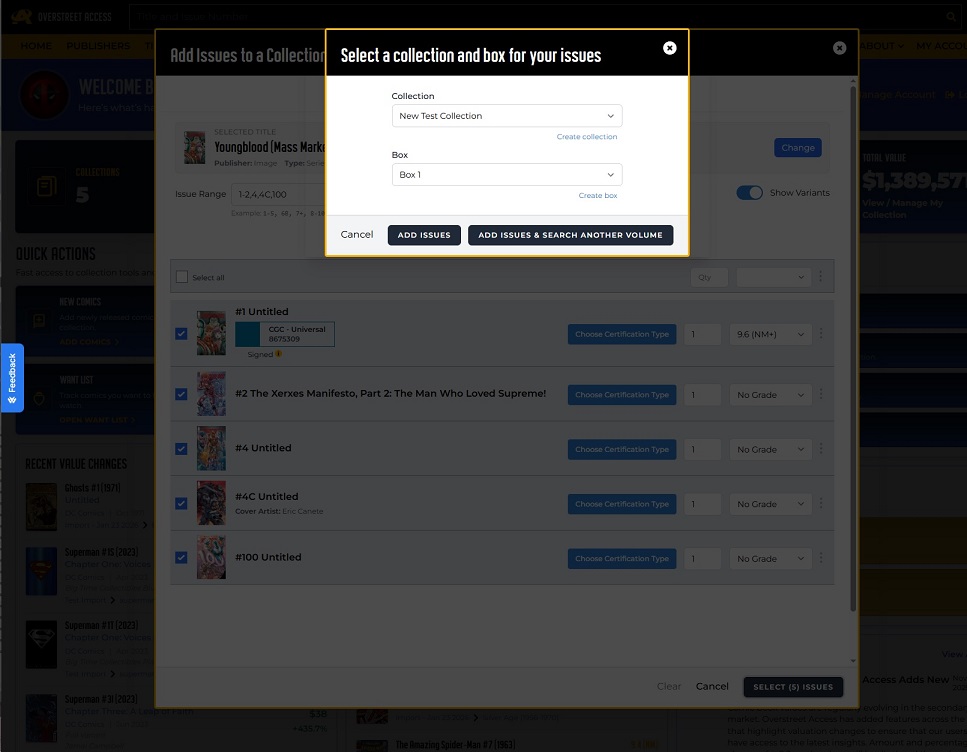
From there, you can add the grade to checked issues (individually or by using the bulk grade option), and add other information like quantity, if the book or books are signed, and certified information. Once the grade and other copy information is selected, click “Select Issues” to open the next step where you choose the collection and box where those issues should be housed. If you have saved defaults, Quick Issue Add can preselect your default collection and box, or you can create a new collection or box at this step. After the issues are added, the Quick Issue Add modal will remain open to add more books or you can close it to refresh the dashboard.

Popular Topics
Overstreet Access Quick Links
Overstreet Access: How to Use “Quick Issue Add” Feature
The Overstreet Access Quick Issue Add feature is built for speed and efficiency. It’s made for moments when collectors know exactly what title and/or books they want to add to their collection without going through several pages. You can search for the title, choose issues, set key copy details, choose where they should go in your collection, and add them.
The Quick Issue Add button is on the dashboard and requires a Silver or Gold level subscription. It can be accessed in the Quick Actions section on the dashboard, then a modal opens with the heading Add Issues to a Collection.
Start by searching for the title or volume name, which will generate results in a cover grid where you can use the cover, title name, start year, and issue count to choose the right title. Once a title is selected, each issue row will include a checkbox, cover thumbnail, issue number, issue name, and variant details. It also shows helpful badges to let you know if it’s already in your collection, on the want list, or a key issue. Then check issues that you want to add.
The Issue Range is a new feature inside Quick Issue Add that helps narrow long lists of issues before selecting books. The range does not automatically add anything, it filters the list to make it easier to choose what to add. In the Issue Range field, you can type the range, click Apply, and then list will update; use Clear to remove the range and return to regular browsing.
Using the + symbol will show the standard issue cover and its variants; typing the issue number and variant cover label (B, C, D, etc.) shows that specific variant cover and value. Issue Range search examples include:
- Type 1-5 to see issues 1-5, standard covers only
- Type 6B to see issue 6B or that specific issue label
- Type 7+ to see issue 7 and all of its variants
- Type 15-20+ to see issues 15-20, plus the variants in that range
- Type 1-5, 6B, 7+ to combine multiple segments in one search
If the range does not produce a list of results, it usually means the range selected did not match the issue or title perimeters. For instance, if an issue does not have a cover B it will not generate a result. The Issue Range feature does not auto-check issues or add them without being chosen, and the select all option only applies to the current page of results.
From there, you can add the grade to checked issues (individually or by using the bulk grade option), and add other information like quantity, if the book or books are signed, and certified information. Once the grade and other copy information is selected, click “Select Issues” to open the next step where you choose the collection and box where those issues should be housed. If you have saved defaults, Quick Issue Add can preselect your default collection and box, or you can create a new collection or box at this step. After the issues are added, the Quick Issue Add modal will remain open to add more books or you can close it to refresh the dashboard.
Popular Topics
Overstreet Access Quick Links