



New Beta Collection Management Tool on Overstreet Access
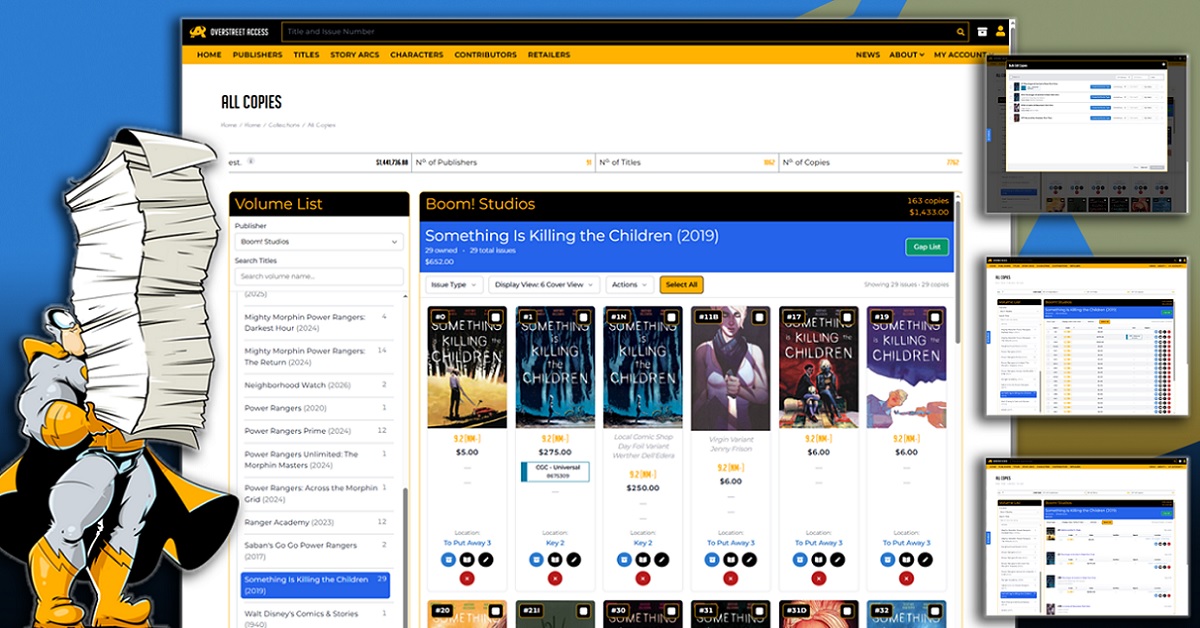
The Overstreet Access Beta Collection Management feature provides new ways to browse and manage comics in a subscriber’s collection. Rather than opening sections one at a time, subscribers can start with a volume list, pick titles, and work with issues and copies within that series. This tool is especially beneficial to collectors who have multiple boxes, duplicate copies, variants, raw and graded copies, and signed books.
Overstreet Access users need a Silver level subscription or higher to use beta collection management. Go to Collection View or My Collections then click on View New Beta UI near the top of the page. A Beta UI link also appears on the All Issues screen, a collection issue view, or a box view, which will open the beta manager in the area in which you are currently working.
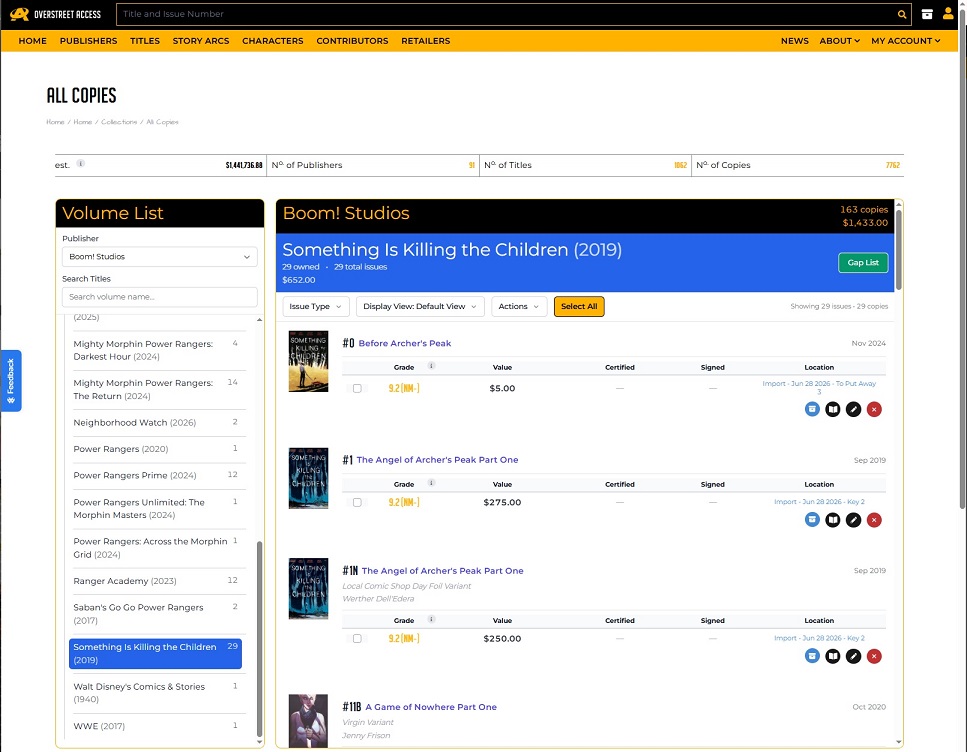
The Beta Manager shows collection statistics at the top of the page, displaying estimated value, number of publishers, titles, and copies. The Volume List filters by publisher, titles, or volumes to view the issues you own. The Issue Type filter shows all issues, raw books, certified issues, signed copies, and variants. Once a volume is selected, the right side shows issues for that title where you can filter by issue type, switch display views, open Gap List, edit copies, and select multiple copies for bulk actions.
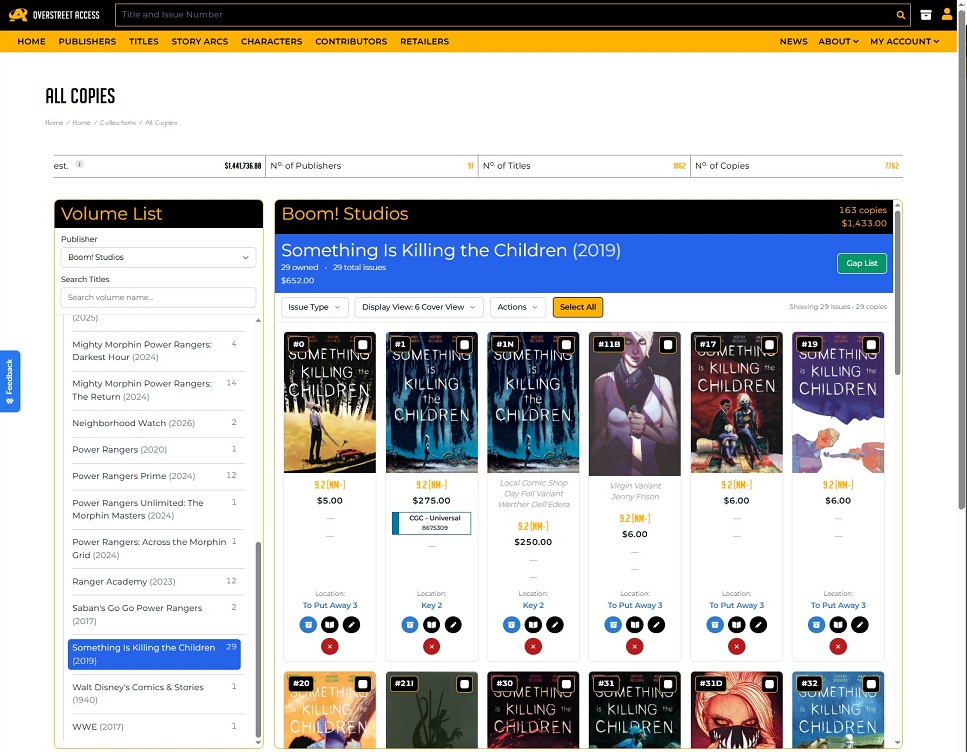
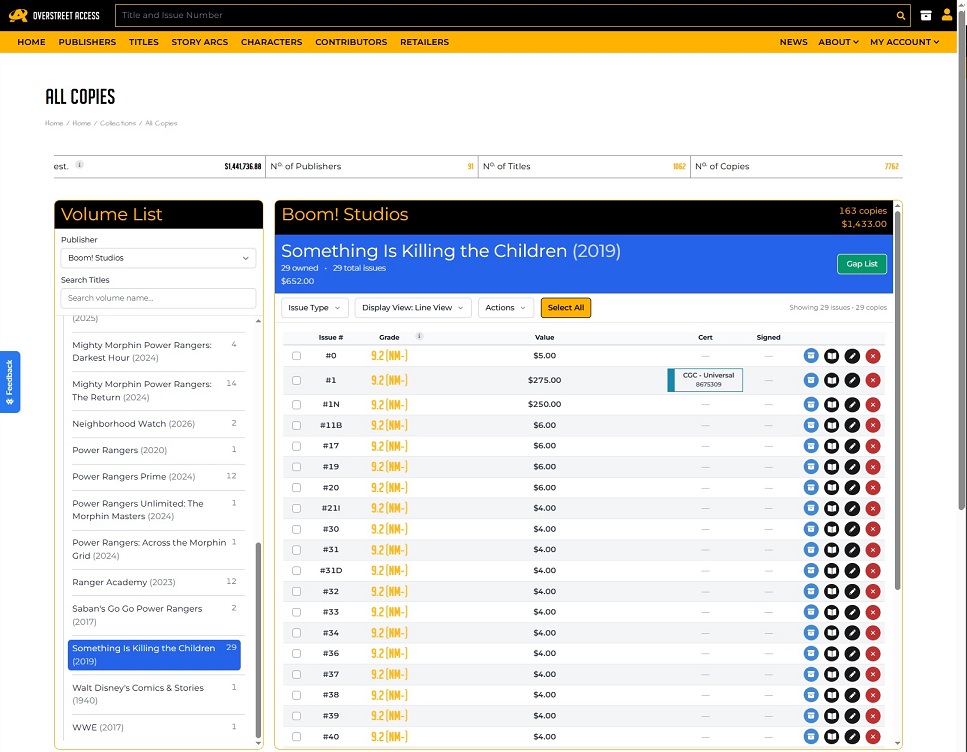
There are three options for the view that is displayed. Default View shows a balanced layout to review issue details and copy information. Cover View focuses on the visual look of the books, which is helpful when searching for variants, comparing covers, or searching for an image. Line View is the compact option that can be used to quickly scan through copies.
Each comic shows a wealth of information including issue number and title, cover image, release date, grade, value (when available), recent value changes (when available), certification type and number, signed details, variant description, printing, cover artist, incentive ratio, collection and box location, and notes.
The editing feature produces an editing panel to change the grade, collection or box, purchase details, certification, signed details, and notes, or delete a book that is no longer in a collection. The Gap List button found on the Volume List produces a list of issues that are not currently in your collection.
The Beta Manager also supports bulk actions. The Bulk Move relocates selected copies from one collection or box to another, Bulk Edit Copies updates shared copy details for several selected books, and Bulk Delete removes selected copies.

Popular Topics
Overstreet Access Quick Links
New Beta Collection Management Tool on Overstreet Access
The Overstreet Access Beta Collection Management feature provides new ways to browse and manage comics in a subscriber’s collection. Rather than opening sections one at a time, subscribers can start with a volume list, pick titles, and work with issues and copies within that series. This tool is especially beneficial to collectors who have multiple boxes, duplicate copies, variants, raw and graded copies, and signed books.
Overstreet Access users need a Silver level subscription or higher to use beta collection management. Go to Collection View or My Collections then click on View New Beta UI near the top of the page. A Beta UI link also appears on the All Issues screen, a collection issue view, or a box view, which will open the beta manager in the area in which you are currently working.
The Beta Manager shows collection statistics at the top of the page, displaying estimated value, number of publishers, titles, and copies. The Volume List filters by publisher, titles, or volumes to view the issues you own. The Issue Type filter shows all issues, raw books, certified issues, signed copies, and variants. Once a volume is selected, the right side shows issues for that title where you can filter by issue type, switch display views, open Gap List, edit copies, and select multiple copies for bulk actions.
There are three options for the view that is displayed. Default View shows a balanced layout to review issue details and copy information. Cover View focuses on the visual look of the books, which is helpful when searching for variants, comparing covers, or searching for an image. Line View is the compact option that can be used to quickly scan through copies.
Each comic shows a wealth of information including issue number and title, cover image, release date, grade, value (when available), recent value changes (when available), certification type and number, signed details, variant description, printing, cover artist, incentive ratio, collection and box location, and notes.
The editing feature produces an editing panel to change the grade, collection or box, purchase details, certification, signed details, and notes, or delete a book that is no longer in a collection. The Gap List button found on the Volume List produces a list of issues that are not currently in your collection.
The Beta Manager also supports bulk actions. The Bulk Move relocates selected copies from one collection or box to another, Bulk Edit Copies updates shared copy details for several selected books, and Bulk Delete removes selected copies.
Popular Topics
Overstreet Access Quick Links