



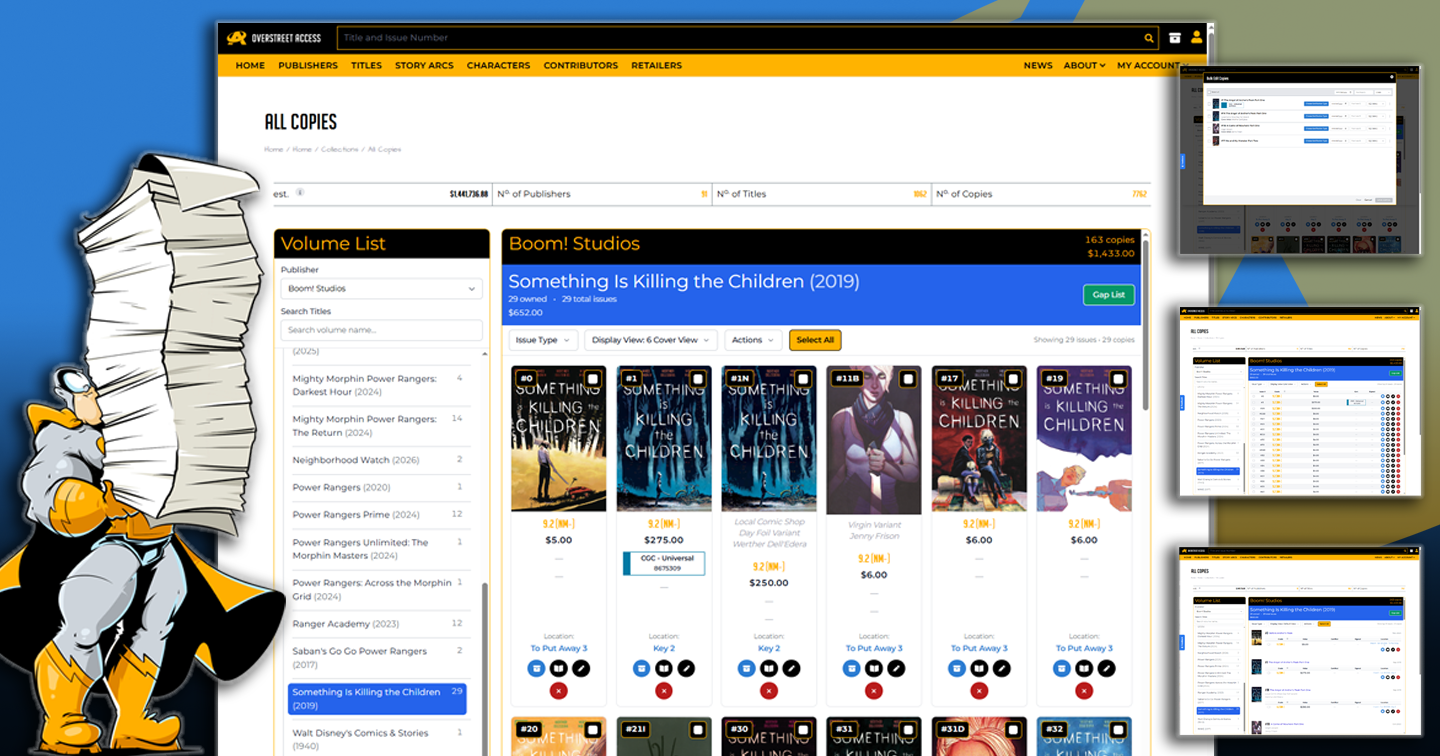
Using the New Beta Collection Management Experience
A new, volume-first way to browse, filter, and manage the comics you own
The beta collection management experience gives you a different way to browse and manage the comics you own. Instead of opening sections one by one, you start with a searchable Volume List, pick the title you want, and then work with the issues and copies you own for that series.
This is especially useful if your collection has grown across multiple boxes, duplicate copies, variants, raw books, certified copies, and signed books. The beta experience brings more of that work into one focused workspace.
How to open it
- Sign in with a Silver-level subscription or above.
- Go to Collection View or My Collections.
- Click View New Beta UI near the top of the page.
You may also see a Beta UI link from classic All Issues, a specific collection issue view, or a box view. Those entry points open the beta manager in a scope that matches where you started.
Understanding the layout
The beta manager has two main areas. On larger screens, the Volume List appears on the left, and the issue/copy panel appears on the right. On smaller screens, those areas become dropdowns and accordions so they are easier to use on a phone or tablet.
Collection statistics
At the top of the page, you can see stats such as estimated value, number of publishers, number of titles, and number of copies. This gives you a quick sense of what is included in the view you are working in.
Volume List
The Volume List is where you find the series you want to manage. You can filter by publisher, search title names, and select a volume to load the issues and copies you own.
Issue and copy panel
After selecting a volume, the right side shows the issues and copies for that title. You can filter by issue type, switch display views, open Gap List, edit copies, and select multiple copies for bulk actions.
Finding the series you want
For large collections, the Volume List is the key. Start broad, then narrow down.
- Use the Publisher dropdown to focus on one publisher.
- Use Search Titles when you know the title or series name.
- Use copy counts to quickly see where you have owned books.
Select a volume to load the issues and copies you own for that title.
Filtering your copies
The Issue Type filter helps you focus on a specific part of your collection. Depending on the data available, you can filter to:
- All Issues
- Raw Issues
- Certified Issues
- Signed Issues
- Variants
These filters are helpful when you are cleaning up a particular kind of copy, reviewing slabs, checking signed books, or trying to understand which variants you own.
Choosing a display view
Default View
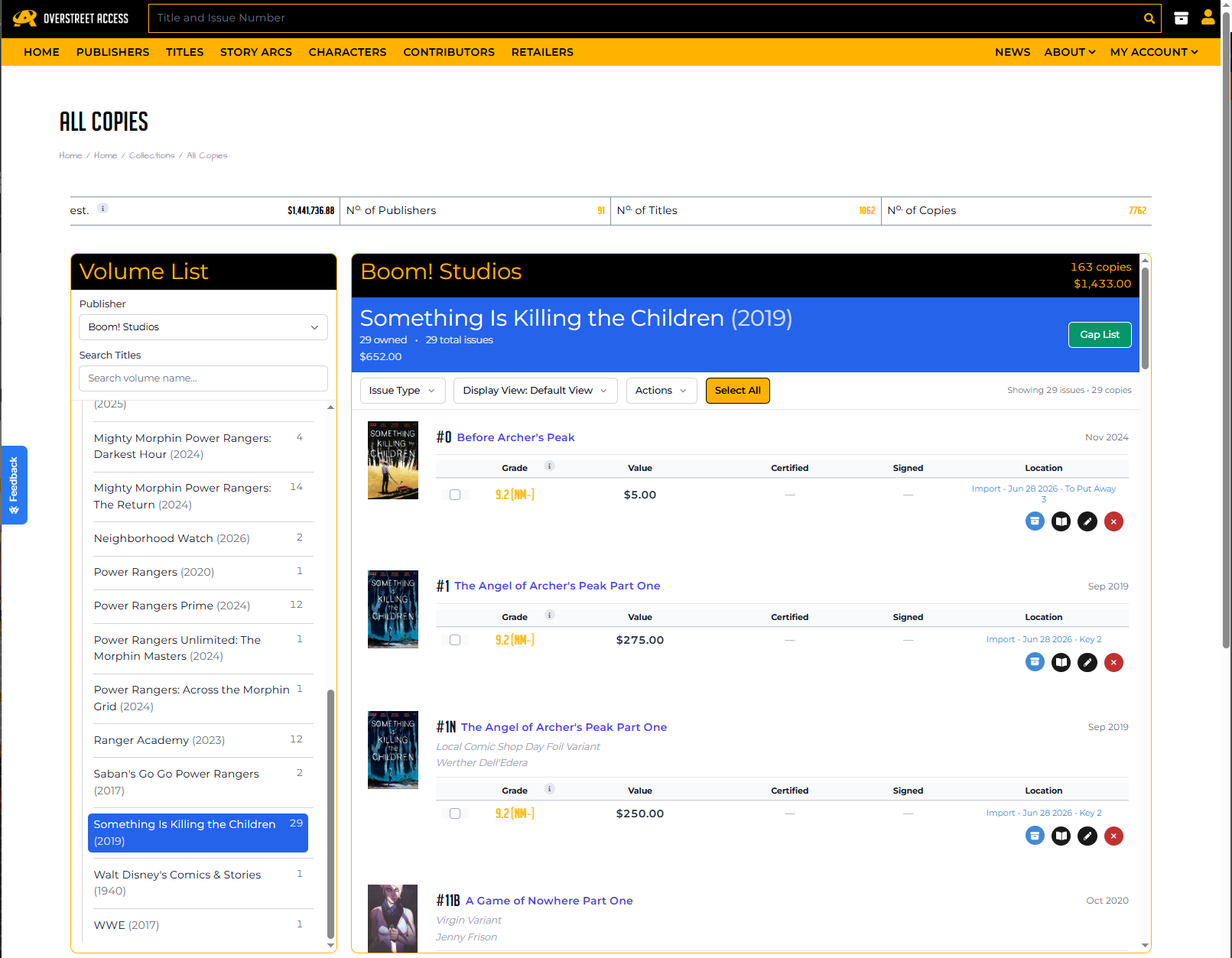
Default View is a balanced layout for reviewing issue details and copy information together. It is a good everyday view when you are not sure what you need yet.
Cover View
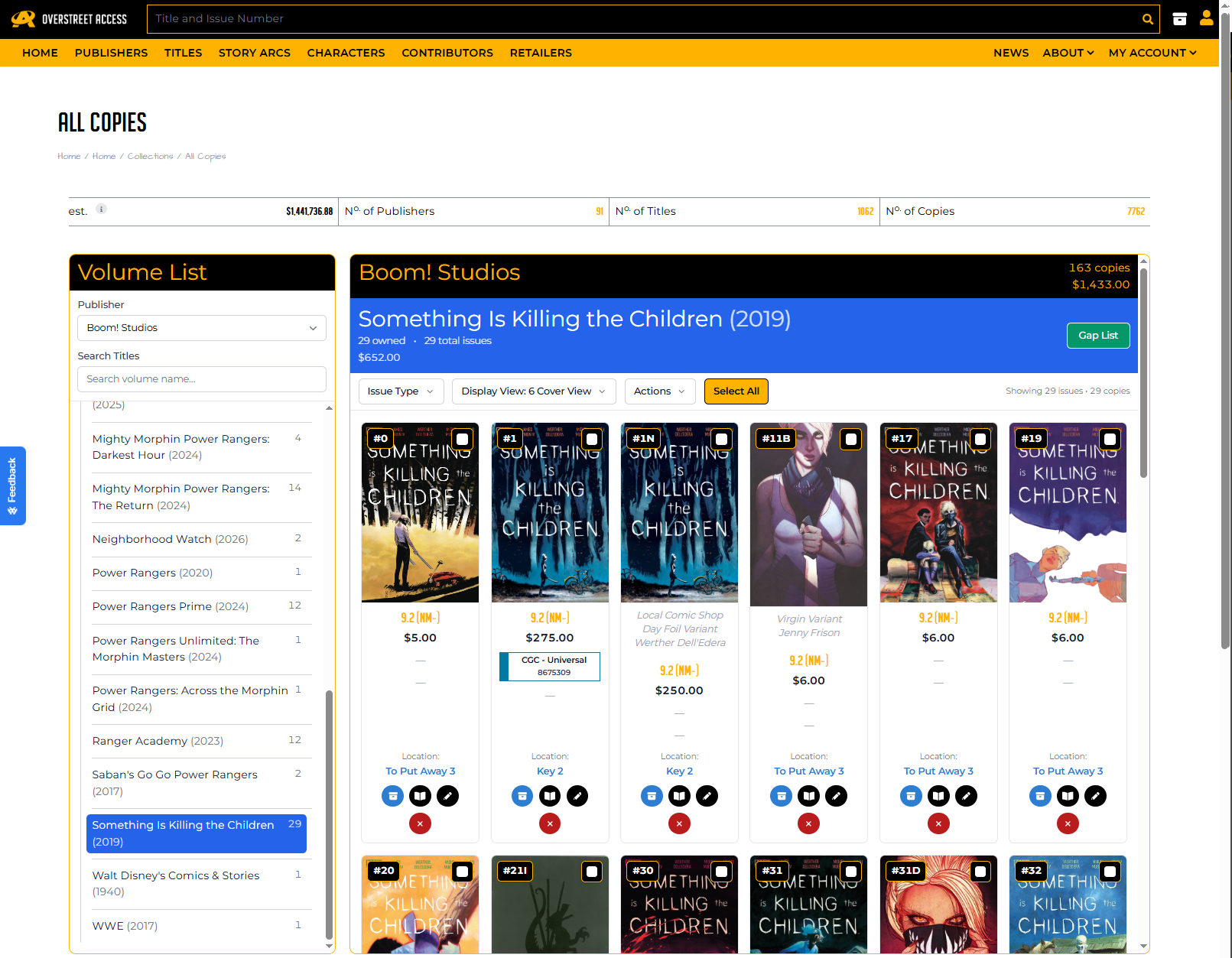
Cover View is useful when the visual version of the book matters. It is especially helpful for variants, cover comparisons, and browsing by image.
Line View
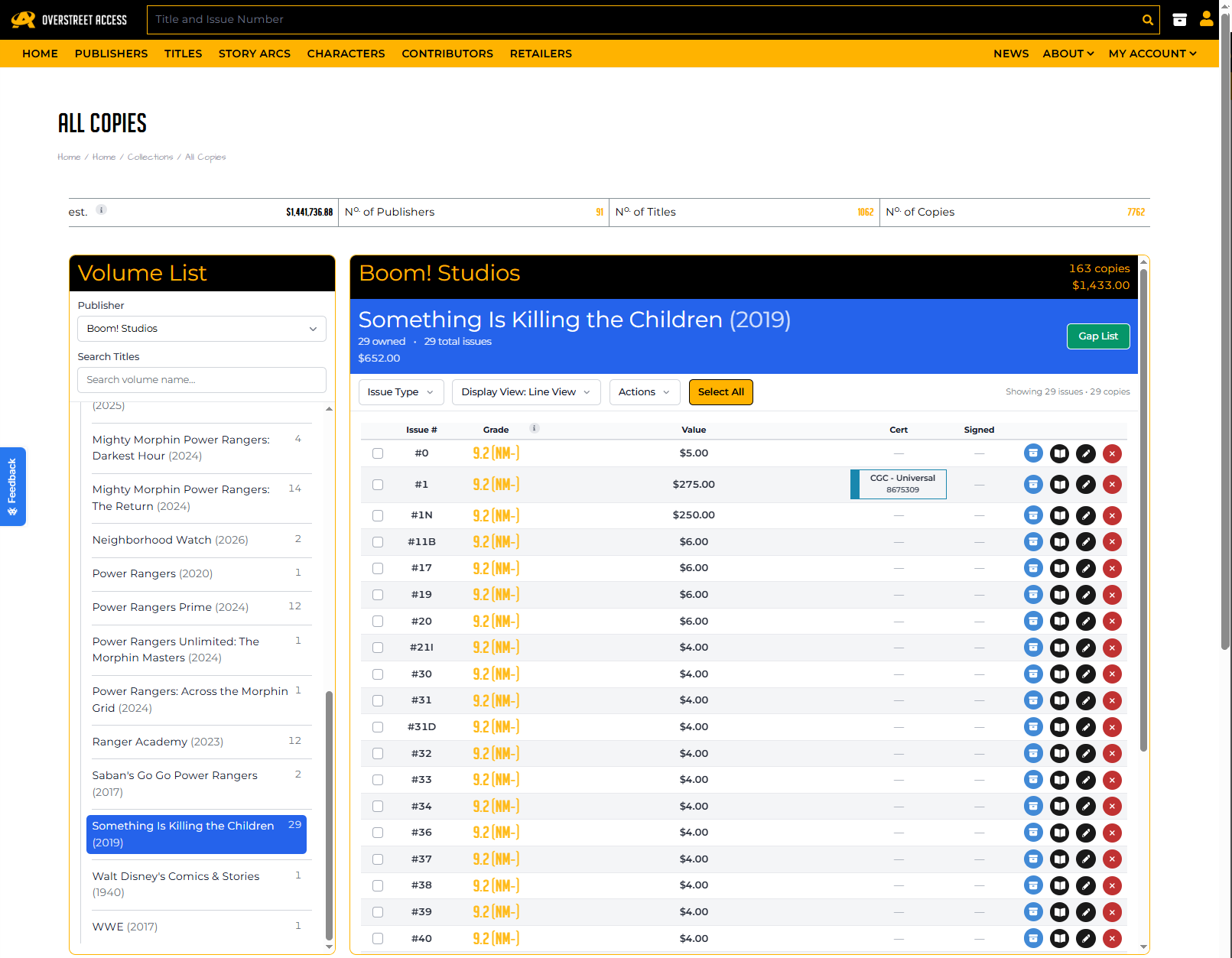
Line View is the compact option. Use it when you want to scan many copies quickly, especially during cleanup or review work.
What you can see for each copy
Copy cards and rows can show the details that help you understand what you own and where it lives.
- Issue number and title
- Cover image
- Release date
- Grade
- Value, when available for your subscription
- Recent value change indicators, when available
- Certification type and number
- Signed By information
- Variant description, printing, cover artist, and incentive ratio when present
- Collection and box location when viewing across larger scopes
- Notes through the notes icon
Editing one copy
Use the edit action on a copy when you need to update details for that specific book. The edit panel can let you adjust copy information such as grade, collection, box, purchase information, certification details, signed information, and notes, depending on the fields available for that copy.
You can also delete an individual copy, but deletion is permanent, so the system asks for confirmation before removing it.
Using Gap List
When a volume is selected, the Gap List button helps you see issues from that title that are not currently in your collection. This is a great tool when you are trying to complete a run.
- Select a volume from the Volume List.
- Click Gap List in the volume header.
- Review missing issues.
- Use variant controls if you want to include or exclude variants.
- Add missing issues when you are ready.
Managing several copies at once
The beta manager also supports bulk actions. Select the copies you want to work with, then choose the action you need.
- Bulk Move helps relocate selected copies into another collection or box.
- Bulk Edit Copies helps update shared copy details across several selected books.
- Bulk Delete removes selected copies after a confirmation step.
Bulk actions are powerful. Take a moment to review your selected copies before confirming any change, especially delete actions.
When to use the classic views
The beta manager is a new option, not a forced replacement for every collection workflow. Classic collection views may still be useful for traditional browsing, A-Z style navigation, collection or box organization, exports, or workflows that have not moved into the beta experience yet.
A good approach is to use the beta manager when you want faster volume-first browsing and copy management, and use classic views when they better match the task.
We are also looking at creating new views and a new design for the classic Box View pages too, so stay tuned!
Tips for larger collections
- Start with the Publisher filter to make the Volume List smaller.
- Use Search Titles when you know the series name.
- Use Line View for fast cleanup work.
- Use Cover View when variants or cover images matter.
- Use Issue Type filters to focus on certified, signed, raw, or variant books.
- Use Bulk Move after physically reorganizing boxes.
- Use Gap List when you are trying to complete a run.

Popular Topics
Overstreet Access Quick Links
Using the New Beta Collection Management Experience
A new, volume-first way to browse, filter, and manage the comics you own
The beta collection management experience gives you a different way to browse and manage the comics you own. Instead of opening sections one by one, you start with a searchable Volume List, pick the title you want, and then work with the issues and copies you own for that series.
This is especially useful if your collection has grown across multiple boxes, duplicate copies, variants, raw books, certified copies, and signed books. The beta experience brings more of that work into one focused workspace.
How to open it
- Sign in with a Silver-level subscription or above.
- Go to Collection View or My Collections.
- Click View New Beta UI near the top of the page.
You may also see a Beta UI link from classic All Issues, a specific collection issue view, or a box view. Those entry points open the beta manager in a scope that matches where you started.
Understanding the layout
The beta manager has two main areas. On larger screens, the Volume List appears on the left, and the issue/copy panel appears on the right. On smaller screens, those areas become dropdowns and accordions so they are easier to use on a phone or tablet.
Collection statistics
At the top of the page, you can see stats such as estimated value, number of publishers, number of titles, and number of copies. This gives you a quick sense of what is included in the view you are working in.
Volume List
The Volume List is where you find the series you want to manage. You can filter by publisher, search title names, and select a volume to load the issues and copies you own.
Issue and copy panel
After selecting a volume, the right side shows the issues and copies for that title. You can filter by issue type, switch display views, open Gap List, edit copies, and select multiple copies for bulk actions.
Finding the series you want
For large collections, the Volume List is the key. Start broad, then narrow down.
- Use the Publisher dropdown to focus on one publisher.
- Use Search Titles when you know the title or series name.
- Use copy counts to quickly see where you have owned books.
Select a volume to load the issues and copies you own for that title.
Filtering your copies
The Issue Type filter helps you focus on a specific part of your collection. Depending on the data available, you can filter to:
- All Issues
- Raw Issues
- Certified Issues
- Signed Issues
- Variants
These filters are helpful when you are cleaning up a particular kind of copy, reviewing slabs, checking signed books, or trying to understand which variants you own.
Choosing a display view
Default View
Default View is a balanced layout for reviewing issue details and copy information together. It is a good everyday view when you are not sure what you need yet.
Cover View
Cover View is useful when the visual version of the book matters. It is especially helpful for variants, cover comparisons, and browsing by image.
Line View
Line View is the compact option. Use it when you want to scan many copies quickly, especially during cleanup or review work.
What you can see for each copy
Copy cards and rows can show the details that help you understand what you own and where it lives.
- Issue number and title
- Cover image
- Release date
- Grade
- Value, when available for your subscription
- Recent value change indicators, when available
- Certification type and number
- Signed By information
- Variant description, printing, cover artist, and incentive ratio when present
- Collection and box location when viewing across larger scopes
- Notes through the notes icon
Editing one copy
Use the edit action on a copy when you need to update details for that specific book. The edit panel can let you adjust copy information such as grade, collection, box, purchase information, certification details, signed information, and notes, depending on the fields available for that copy.
You can also delete an individual copy, but deletion is permanent, so the system asks for confirmation before removing it.
Using Gap List
When a volume is selected, the Gap List button helps you see issues from that title that are not currently in your collection. This is a great tool when you are trying to complete a run.
- Select a volume from the Volume List.
- Click Gap List in the volume header.
- Review missing issues.
- Use variant controls if you want to include or exclude variants.
- Add missing issues when you are ready.
Managing several copies at once
The beta manager also supports bulk actions. Select the copies you want to work with, then choose the action you need.
- Bulk Move helps relocate selected copies into another collection or box.
- Bulk Edit Copies helps update shared copy details across several selected books.
- Bulk Delete removes selected copies after a confirmation step.
Bulk actions are powerful. Take a moment to review your selected copies before confirming any change, especially delete actions.
When to use the classic views
The beta manager is a new option, not a forced replacement for every collection workflow. Classic collection views may still be useful for traditional browsing, A-Z style navigation, collection or box organization, exports, or workflows that have not moved into the beta experience yet.
A good approach is to use the beta manager when you want faster volume-first browsing and copy management, and use classic views when they better match the task.
We are also looking at creating new views and a new design for the classic Box View pages too, so stay tuned!
Tips for larger collections
- Start with the Publisher filter to make the Volume List smaller.
- Use Search Titles when you know the series name.
- Use Line View for fast cleanup work.
- Use Cover View when variants or cover images matter.
- Use Issue Type filters to focus on certified, signed, raw, or variant books.
- Use Bulk Move after physically reorganizing boxes.
- Use Gap List when you are trying to complete a run.
Popular Topics
Overstreet Access Quick Links