



Introducing the New Overstreet Access Dashboard
Welcome to your new starting point
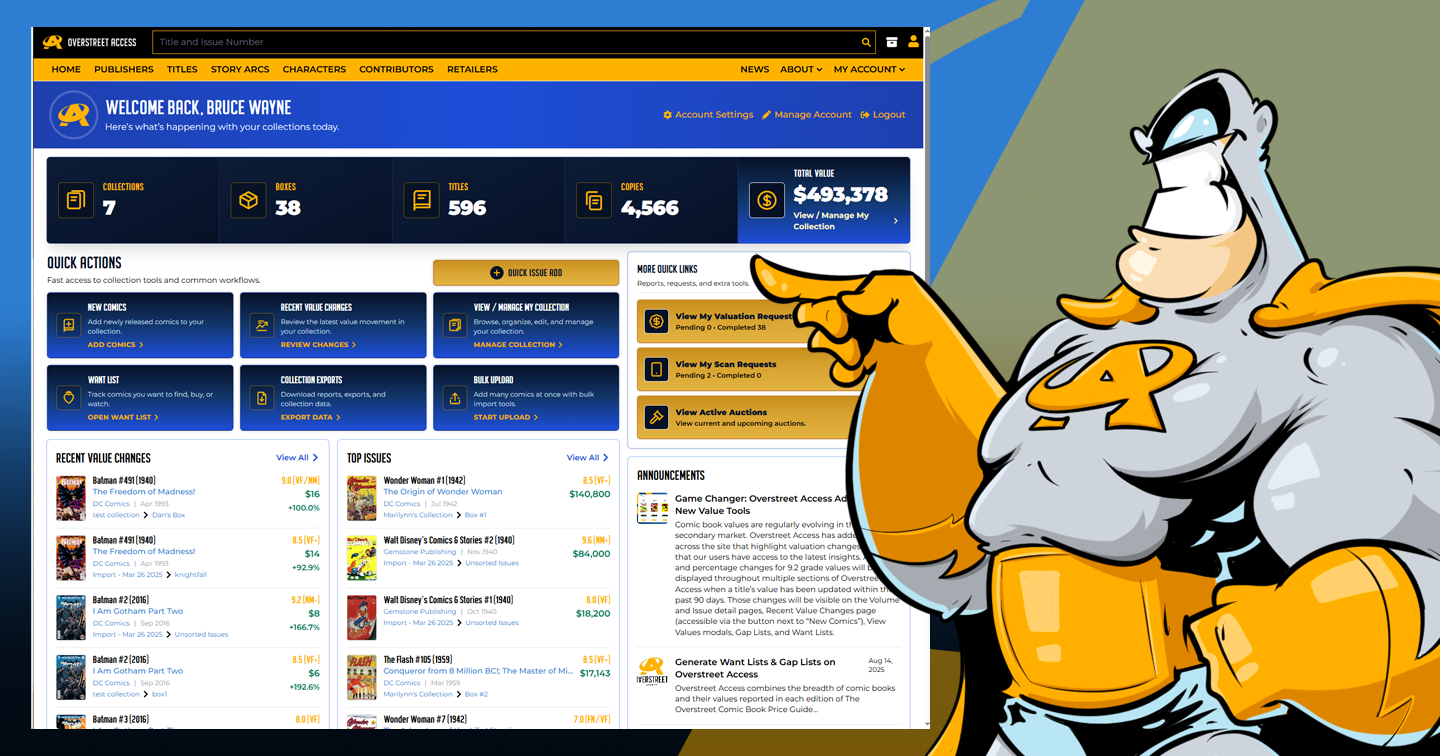
The redesigned Overstreet Access dashboard is meant to be the place you land when you want a quick sense of what is happening with your collection. Instead of starting from a blank menu or bouncing between several pages, you now get collection stats, useful shortcuts, value previews, and announcements together in one view.
Think of it as your collection home base. It is not meant to replace every deeper tool in Overstreet Access. It is meant to help you decide where to go next, faster.
Getting to the dashboard
When you sign in, Overstreet Access takes you to the dashboard. You can also return to it from the main navigation when you want to get back to your account overview.
At the top of the page, you will see a welcome message, account links, and your collection summary. If you are using a phone or tablet, the same information is reorganized into a more compact layout so the most useful tools stay easy to reach.
Your collection snapshot
The snapshot strip gives you a quick overview of your collection before you open any detailed management page. Depending on your subscription and collection data, you may see:
- Collections
- Boxes
- Volumes or titles
- Copies
- Total Value
For collectors with active collection access, these numbers help answer the basic questions right away: how big is my collection, how is it organized, and what is it currently worth in Overstreet Access?
Quick Actions: the tools you use most
The Quick Actions section is designed to cut down on hunting through menus. It brings common workflows into one place so you can jump directly into the task you came to do.
New Comics
Use New Comics when you want to browse newly released books and add current issues to your collection.
Recent Value Changes
Use Recent Value Changes when you want to review movement in your collection. This is useful when you want to see which books have changed without searching issue by issue.
View / Manage My Collection
This takes you into the main collection management area, where you can browse, organize, edit, and manage the books you own.
Want List
Use Want List to track books you want to find, buy, or keep an eye on.
Collection Exports
Collection Exports gives you access to downloadable reports and collection data when you need to work with your information outside the site.
Bulk Upload
Bulk Upload is useful when you need to add many comics at once from a file or import-style workflow. Quick Issue Add is better for interactive searching and adding; Bulk Upload is better for larger structured imports.
Recent Value Changes
The Recent Value Changes section highlights books in your collection that have moved recently. Each item can show useful context like the cover, issue information, publisher, grade, current value, and change indicator.
This is meant to be a quick scan, not a complete market report. It gives you a helpful starting point when you want to know what has changed in your collection lately.
- Use it to spot movement in books you already own
- Open the related issue or expanded view when you want more detail.
- Remember that value visibility and detail may depend on your subscription level.
Top Issues
Top Issues gives you a quick preview of some of the highest-value books in your collection. This is a helpful way to keep an eye on your most notable copies without opening the full collection manager.
This section is a preview. For deeper browsing, sorting, editing, or cleanup, use the collection management tools.
Variant details are easier to recognize
When variant information is available, dashboard cards can show details like printing, variant description, cover artist, and incentive ratio. That extra context helps you recognize the exact version you own without opening the full issue page every time.
Announcements
The Announcements section surfaces Overstreet Access news and updates. These are general updates from Overstreet Access, not personalized account messages. When an announcement has a full article, it opens on the main Overstreet Access site.
This gives users a simple way to stay connected to product updates, news, and feature announcements from inside the logged-in experience.
Using the dashboard on mobile
The dashboard is designed to work across phone, tablet, and desktop. On smaller screens, the stats become more compact, Quick Actions are easier to tap, and sections stack into a more natural reading order.
- Quick Issue Add becomes easier to reach as a full-width action.
- Stats are condensed so you can still scan collection size quickly.
- Preview cards stack so they are easier to read on a small screen.
Best way to use the dashboard
A good habit is to treat the dashboard as your first stop. Check your collection snapshot, review Recent Value Changes or Top Issues if something catches your eye, then use Quick Actions to jump into the workflow you need.
If you are adding a few books, start with Quick Issue Add. If you are importing a large list, use Bulk Upload. If you are organizing or cleaning up books you already own, open collection management or the beta collection manager.

Popular Topics
Overstreet Access Quick Links
Introducing the New Overstreet Access Dashboard
Welcome to your new starting point
The redesigned Overstreet Access dashboard is meant to be the place you land when you want a quick sense of what is happening with your collection. Instead of starting from a blank menu or bouncing between several pages, you now get collection stats, useful shortcuts, value previews, and announcements together in one view.
Think of it as your collection home base. It is not meant to replace every deeper tool in Overstreet Access. It is meant to help you decide where to go next, faster.
Getting to the dashboard
When you sign in, Overstreet Access takes you to the dashboard. You can also return to it from the main navigation when you want to get back to your account overview.
At the top of the page, you will see a welcome message, account links, and your collection summary. If you are using a phone or tablet, the same information is reorganized into a more compact layout so the most useful tools stay easy to reach.
Your collection snapshot
The snapshot strip gives you a quick overview of your collection before you open any detailed management page. Depending on your subscription and collection data, you may see:
- Collections
- Boxes
- Volumes or titles
- Copies
- Total Value
For collectors with active collection access, these numbers help answer the basic questions right away: how big is my collection, how is it organized, and what is it currently worth in Overstreet Access?
Quick Actions: the tools you use most
The Quick Actions section is designed to cut down on hunting through menus. It brings common workflows into one place so you can jump directly into the task you came to do.
New Comics
Use New Comics when you want to browse newly released books and add current issues to your collection.
Recent Value Changes
Use Recent Value Changes when you want to review movement in your collection. This is useful when you want to see which books have changed without searching issue by issue.
View / Manage My Collection
This takes you into the main collection management area, where you can browse, organize, edit, and manage the books you own.
Want List
Use Want List to track books you want to find, buy, or keep an eye on.
Collection Exports
Collection Exports gives you access to downloadable reports and collection data when you need to work with your information outside the site.
Bulk Upload
Bulk Upload is useful when you need to add many comics at once from a file or import-style workflow. Quick Issue Add is better for interactive searching and adding; Bulk Upload is better for larger structured imports.
Recent Value Changes
The Recent Value Changes section highlights books in your collection that have moved recently. Each item can show useful context like the cover, issue information, publisher, grade, current value, and change indicator.
This is meant to be a quick scan, not a complete market report. It gives you a helpful starting point when you want to know what has changed in your collection lately.
- Use it to spot movement in books you already own
- Open the related issue or expanded view when you want more detail.
- Remember that value visibility and detail may depend on your subscription level.
Top Issues
Top Issues gives you a quick preview of some of the highest-value books in your collection. This is a helpful way to keep an eye on your most notable copies without opening the full collection manager.
This section is a preview. For deeper browsing, sorting, editing, or cleanup, use the collection management tools.
Variant details are easier to recognize
When variant information is available, dashboard cards can show details like printing, variant description, cover artist, and incentive ratio. That extra context helps you recognize the exact version you own without opening the full issue page every time.
Announcements
The Announcements section surfaces Overstreet Access news and updates. These are general updates from Overstreet Access, not personalized account messages. When an announcement has a full article, it opens on the main Overstreet Access site.
This gives users a simple way to stay connected to product updates, news, and feature announcements from inside the logged-in experience.
Using the dashboard on mobile
The dashboard is designed to work across phone, tablet, and desktop. On smaller screens, the stats become more compact, Quick Actions are easier to tap, and sections stack into a more natural reading order.
- Quick Issue Add becomes easier to reach as a full-width action.
- Stats are condensed so you can still scan collection size quickly.
- Preview cards stack so they are easier to read on a small screen.
Best way to use the dashboard
A good habit is to treat the dashboard as your first stop. Check your collection snapshot, review Recent Value Changes or Top Issues if something catches your eye, then use Quick Actions to jump into the workflow you need.
If you are adding a few books, start with Quick Issue Add. If you are importing a large list, use Bulk Upload. If you are organizing or cleaning up books you already own, open collection management or the beta collection manager.
Popular Topics
Overstreet Access Quick Links